If you’re like me, then you don’t use every single setting that your iPhone comes with, and it would make life easier in the organization department if you could move around yourSettingsapp’s preference cells and hide the ones you don’t use.
If this functionality sounds useful to you, thenPreferenceTag3, which is ajailbreak tweakyou can grab from Cydia for $1.99, is going to be your new best friend because it’ll let your organize your Settings app exactly how you like it.

In this review, we’ll show you what PreferenceTag3 is all about and how it works.
Organizing the Settings app for your own needs
The Settings app is something we’re all familiar with. It’s the place we go to for setting up our device(s) with our preferred configurations, but with all of these settings there can be a great deal of clutter with some options we’ll never take advantage of.
For example, I’m not much of aFlickror Vimeo user, but Apple has preference cells in the Settings app for these services so you’re able to sign in with them to experience more out of iOS. Since I don’t use them, I’d much rather hide them than have to scroll past them all the time, and PreferenceTag3 is going to let me do that.

Hiding cells isn’t the only thing PreferenceTag3 lets you do; you’ll also be able to relocate preference cells, which means you can organize them in any order you choose. In addition, you can create folders to organize clutter, which is useful for organizing the large accumulation of app preference cells at the bottom of your settings app into a single cell to clean up the Settings app a bit.
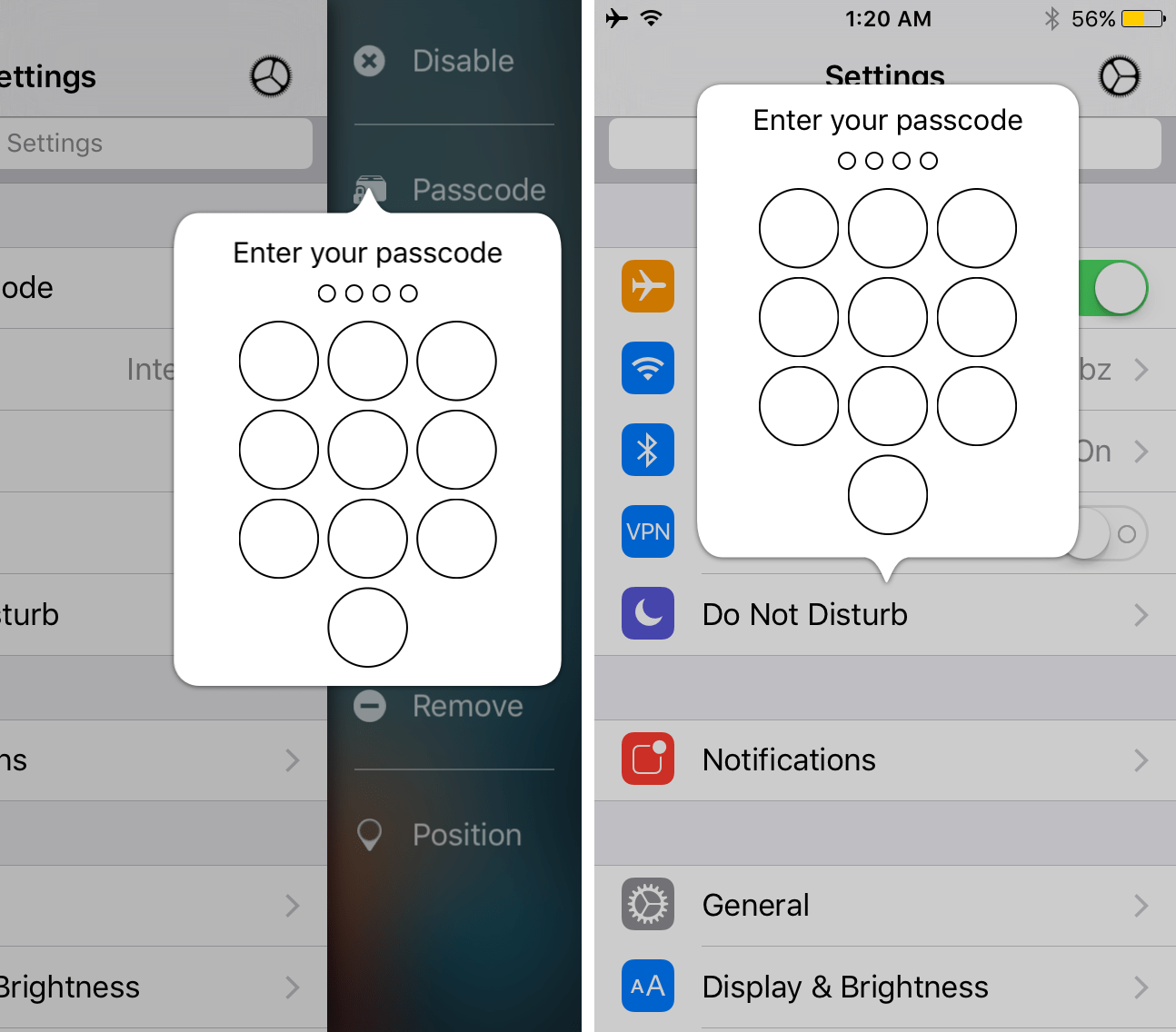
Another useful feature of PreferenceTag3 is that you can passcode-protect individual preference cells. When you do, tapping on the passcode-protected cell will prompt you to enter yourpasscode. If you don’t know it, you won’t be able to make changes, and this is useful for keeping people out of personal settings you don’t want changed if you have other people using your device(s) often.

Are you liking the sound of the tweak so far? – If so, check out the examples below.
Using PreferenceTag3
To use PreferenceTag3, you can use a3D Touchgesture, or just tap and drag to the left from anywhere in the Settings app. To access settings for an individual preferences cell, you’ll tap on the cell and drag to the left.
When you open the main interface by tapping anywhere there’s blank space in the Settings app and swiping to the left, you’ll see the “PreferenceTag” header at the top. From here, you can access your main sections and configure them. These sections include shortcuts to the following:
To configure a single preference cell under one of these sections, tap on a preferences cell and drag it to the left. This reveals a narrower interface that lacks the “PreferenceTag” header, but shows all your options so you can apply any of them to the section in question.
Hiding preference cells
Hiding preference cells is easy. Just tap on one, drag to the left, and from the options you’ll pick “Remove” from the list. This will hide it from the Settings app. In the example below, we’ve hidden the “Cellular” settings from the Settings app because this iPhone doesn’t even have a SIM card in it, and these options are pointless on this iPhone.
You’ll notice I’ve also hidden some other preference cells I don’t use to further simplify the Settings app.
Passcode-protecting preference cells
PreferenceTag3 also provides you with a way to passcode-protect any of your preference cells. You’ll simply configure a passcode you want from the main PreferenceTag3 interface, and then to apply it to a preference cell, you’ll tap on a preference cell and drag it to the left and tap on “Passcode” from the list.
Now when you try to launch that pane, you’ll have to enter your passcode to gain access.
Assigning tags to preference cells
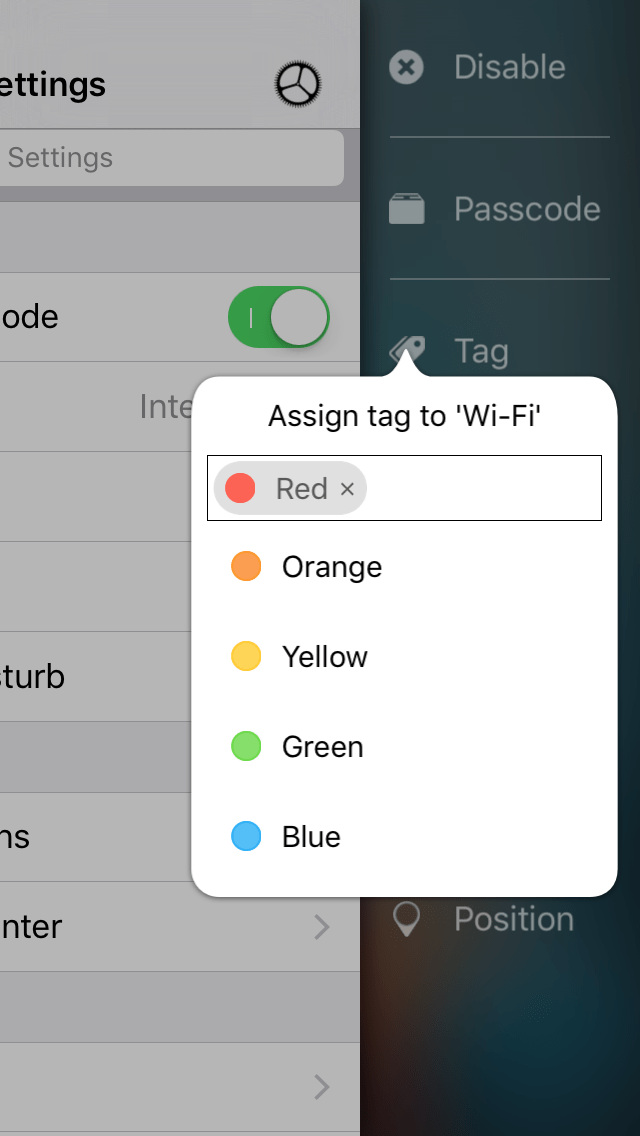
Similarly to OS X, you may use tags to better organize your preference cells with PreferenceTag3. These tags are color-based or category-based and you can pick from:
Organizing preference cells into folders
If you want to organize all the individual preference cells in the Settings app, then this feature will appeal to you.
You can easily move all this clutter into individualfoldersyou create so that the preference cells are nice and organized. You can create and name your own folders, or pick from any of the presets. I find this feature particularly useful for organizing all the preference cells for the individual apps installed on your device that appear at the bottom of the Settings app.
Moving preference cells around
Another useful feature of PreferenceTag3 is that you’re able to re-organize your preference cells to your liking, which is great if you want to put your favorite preference cells first and your less-important ones closer to the bottom of the Settings app.
Using a tap and drag gesture, just like widgets inNotification Center, you can re-position any preference cell. In our example below, we’ve moved the Do Not Disturb cell under theVPNcell; it normally appears under theControl Centercell.
Wrapping up
PreferenceTag3, which is a $1.99 download fromCydia‘s BigBoss repository, is a well thought out tweak for anyjailbrokeniOS 9device. Everything works how you would expect it to, and what you end up with is a cleaner Settings app that so it’s easier to get to the Settings that matter to you.
The tweak really impresses me with quality and features, and among my favorite features are the ability to passcode-protect certain settings, hide preference cells I don’t use, and re-organize my favorite preference cells to appear first. Although these are my favorites, the other features are also useful and other users may find them more useful than me.
What are your thoughts on PreferenceTag3? Share in the comments below!
