Sometimes it is necessary to connect to your mobile device from a computer, for troubleshooting purposes or to use a tool which runs from the computer. For example, tihmstar’sPrometheus suitedowngrades your device by sending commands to it from the computer on which it, and the files it uses, are stored. The connection used to do this is called SSH, and is normally provided by the OpenSSH package (or an equivalent client such as Dropbear).
In this guide we will show you how to use SSH to connect to your device from your computer. We will also go through how to change the default passwords on your device, because once you have installed OpenSSH, anyone can log in using the default passwords if you do not change them. This is a major security risk, and so everyone who has OpenSSH installed should follow this procedure.
Warning: read this!
Please note, this proceduredoes not apply to the iOS 10 Yalu jailbreaks.They already include a different SSH client, and installing OpenSSH alongside it will cause issues.
Installing OpenSSH on devices running iOS 9.3.3 or lower is however completely safe.
How to SSH into your iPhone or iPad
1)If you do not already have it installed, installOpenSSHonto your device from Cydia. It is found on the Cydia/Telesphoreo repository, and the author is Saurik.
If you are running any Yalu jailbreak for iOS 10,do notinstall OpenSSH, as it already includes an SSH client called Dropbear and installing both will cause issues.

2)Ensure that both your laptop and device are connected to the same Wi-Fi network.
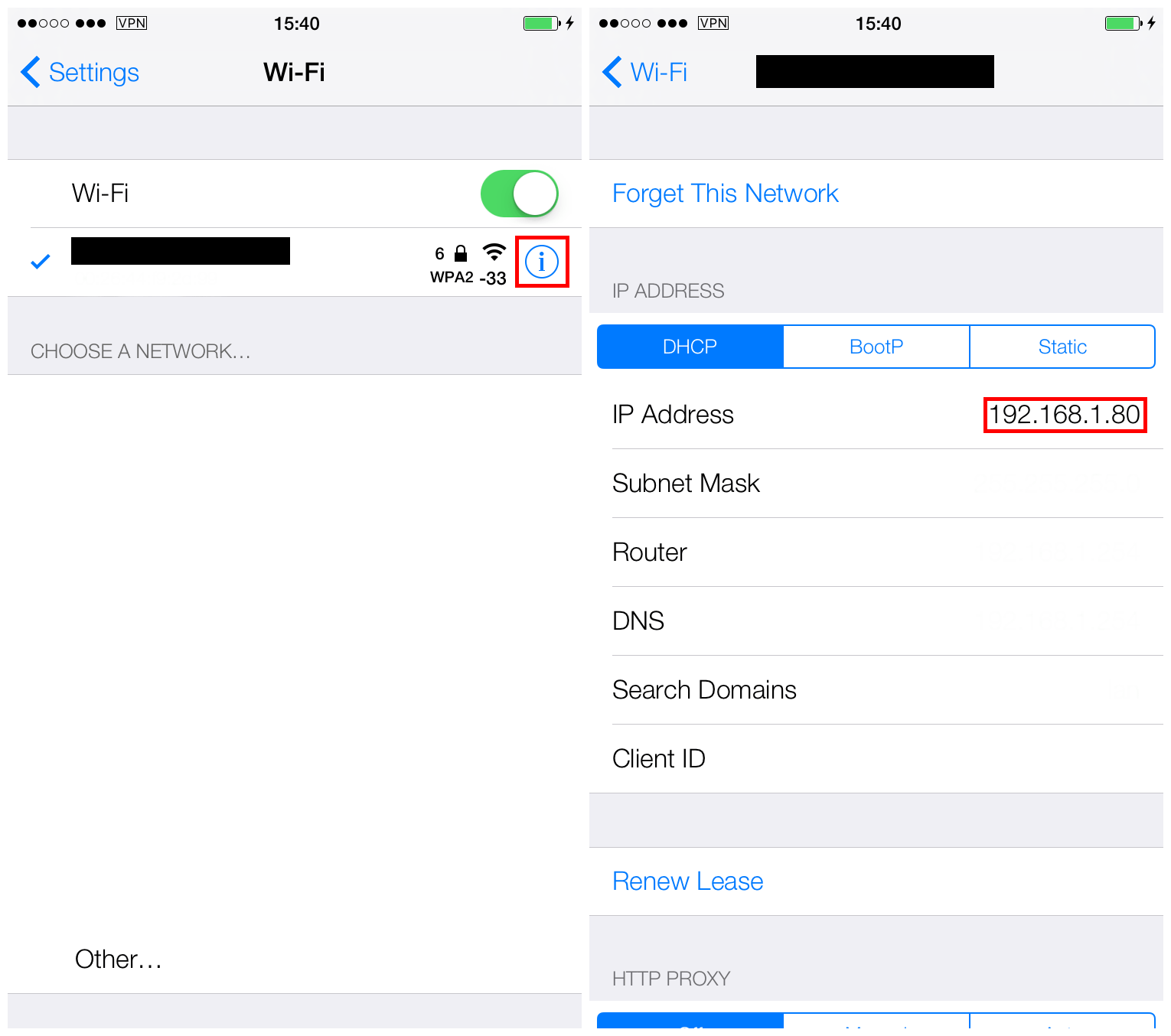
3)On your device, open theSettingsapp, and go toWi-Fi.

4)Select the blue information icon to the right of the Wi-Fi network you are currently connected to.
5)On the information page which comes up, look for the field calledIP Address, and note down the value.
6)On your Mac, launch theTerminalapplication from /Applications/Utilities, or via Spotlight.
7)At the prompt, enter the command below. Replace the string of Xs with theIP addressyou noted in Step 5.
8)Terminal may ask you if you want to trust the host. If it does, typeyes, and then press theEnterkey.
9)It will now ask for the device’s password, to connect to it. This is not your computer password or your device’s lock password.
10)Type in the password, and hitEnter.
11)After entering the password, Terminal’s prompt will change from your computer’s name, toroot, which means it is now connected to your device. Any commands you issue after this will affect your device rather than your computer.
If you have already changed your device’s default passwords and just needed to know how to SSH into your device, you are now done! you may now issue whatever commands you need to your device, such as replacing files, or using tools like Prometheus.
However, if you have not changed your default passwords yet, and you logged in with the password “alpine”, you should change them NOW by following the remainder of this guide.
How to change your root and mobile passwords
You will only have to do this part once; in future, you can SSH to your device by following only the steps above.
1)Follow the instructions above to SSH into your iPhone or iPad.
2)Once you are connected to your device, and the command prompt saysroot, change the root password by typingpasswdinto Terminal.
3)It will ask for a new root password. Type it in carefully, hitEnter, and then type it in again when prompted.
Do not lose, mistype twice, or forget this password, as you will not be able to change it if you do, and you will not be able to connect to your device via SSH without it.
Once the password has been entered twice, therootprompt will reappear, meaning the root password has been successfully changed. In future, you must enter that new password at step 9 above when connecting via SSH.
4)Now typepasswd mobileinto Terminal, and pressEnter.We will now change the password for mobile user as well as root, to keep the device secure.
5)Terminal will again ask you to enter a password twice, this time for mobile instead of root. The passwords can be the same if you like.
Do not lose, mistype twice, or forget this password, as you will not be able to change it if you do.
Once you have entered the password twice, the prompt will reappear, meaning the mobile password has also been successfully changed. Your device is now secure from unwanted connections logging in with the default password. In future, you need only follow steps 2-9 of this guide to connect via SSH, and must enter your new root password instead of “alpine”.
Here is a screenshot of the entire Terminal session, so that you’re able to view the commands:
OpenSSH is a powerful tool, and can often save your device from a restore by letting you make changes to it when the device itself cannot be used, for example when frozen or boot looping. For this reason, it is a good idea to have it installed, so you’re prepared for the worst. If you do install it however,be sure to change the passwordsas detailed above, or it becomes more of a security risk than a help.
Let me know if you have any problems following this guide, and if you have any interesting uses for OpenSSH on your Apple devices. This process will come in handy for some of my upcoming guides as well, such as how to use tihmstar’sfuturerestoreto upgrade your device to an unsigned firmware, so look out for that too!
