PlayStation Plusis a paid subscription service by Sony that allows users to download and play multiple games every month. In addition to the free games, PS Plus users also enjoy special discounts and offer on games. However, if, for some reason, you’re looking to cancel your PS Plus subscription, this guide will help you do so on either your PlayStation or PC.
How to cancel your PlayStation Plus subscription on a PC
1. Go toPlayStation.comand log in with your PlayStation credentials.
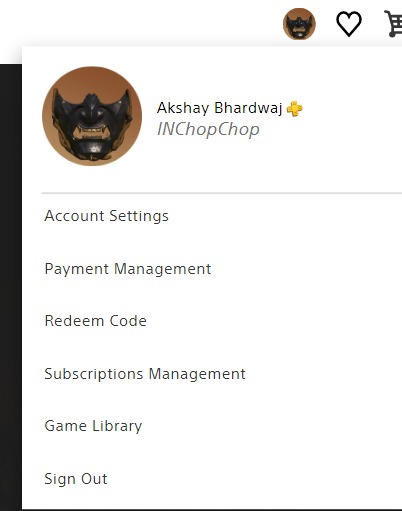
- Now that you’re logged in, tap on your profile picture in the top-right corner.
3. From the drop-down menu, click onSubscriptions Management.
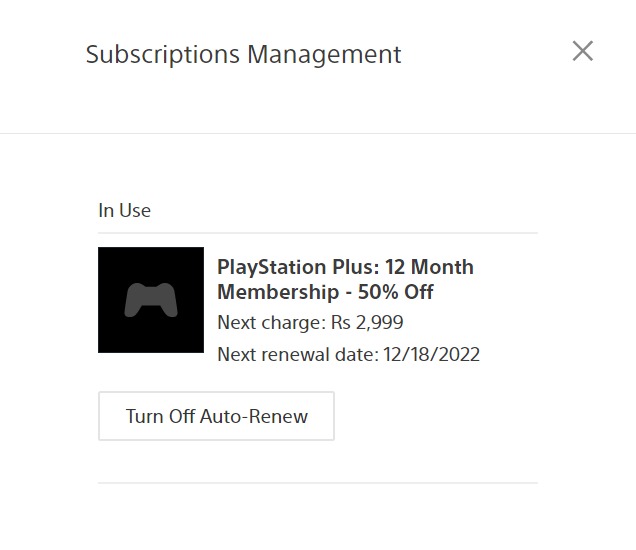
4. On the next screen, click onTurn Off Auto-Renew.
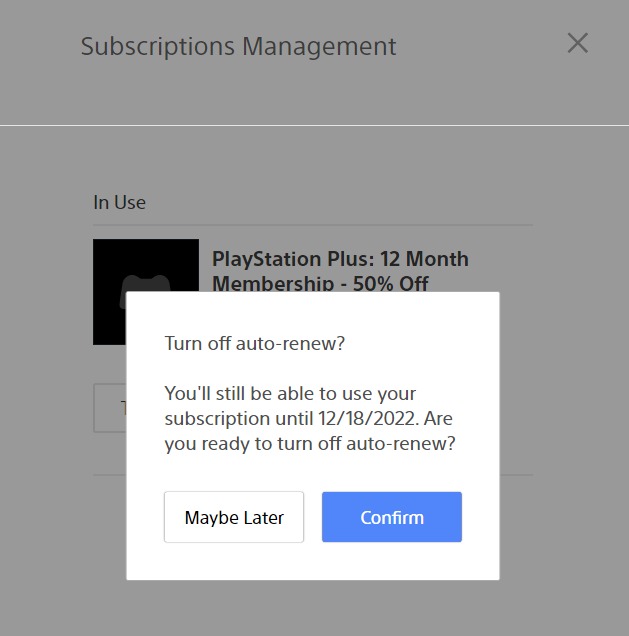
5. Lastly, click onconfirmon the next screen tocancelyourPS Plus subscription.
Cancel your PS Plus subscription on the console
Go tosettings;The settings button is located at the top-right corner of the home screen.
Go toUsers and Accounts.

In the users and accounts menu, navigate toPayments and Subscriptions.
When you’re in the payments and subscriptions menu, click onSubscriptions.
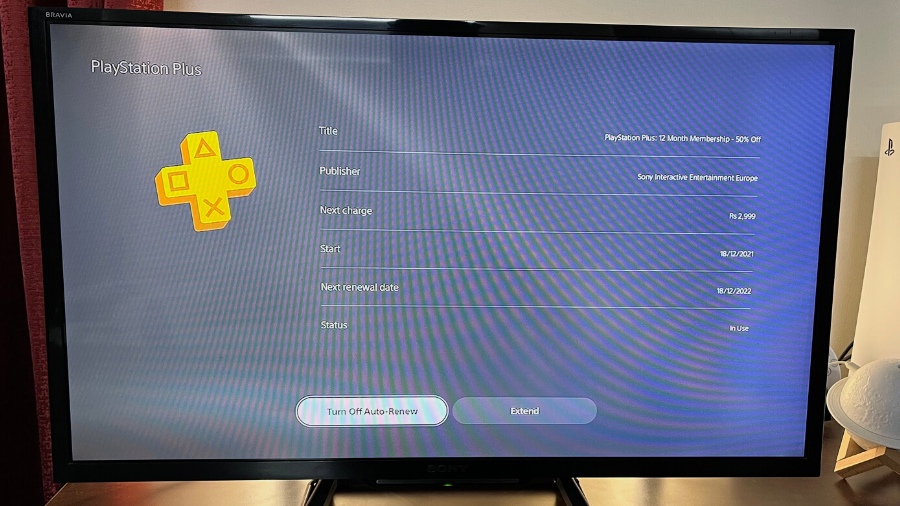
Lastly, choosePlayStation Plusfrom the list and click on it.
Now, click onTurn off Auto-Renewand clickconfirm cancelationon the next screen to cancel your PlayStation Plus subscription.
Cancel your PS Plus subscription via the PS App
To be able to cancel your PS Plus subscription or any PlayStation subscription right from your mobile phone is a great comfort. Meanwhile, if you haven’t linked your PlayStation console to your PS App, you may still perform the action of canceling the PlayStation Plus subscription without having to start your console or open up a PC. However, do keep in mind that you need to be signed in to the PS App to perform the cancellation.
- Launch the PS App on your smartphone and go tosettings.
Now, scroll down and click onPSN Service Statusin the PlayStation Network menu.
On the next, scroll down to services and click onPlayStation Plus.
On the next screen, you need to be signed in to your PS account to cancel your PS Plus subscription. To sign in, click on the top right corner and enter your login credentials.
Now, click on your profile picture in the top-right corner and selectSubscriptions Managementfrom the menu.
6. Lastly, click onTurn Off Auto-Renew.
7. Lastly, tap onconfirmto cancel your PlayStation Plus subscription.
Having A Change Of Mind Is Normal
Now that you know how to cancel your PlayStation Plus subscription via a PC, console, or PS app, there’s another thing you should know. you may turn on the auto-renewal of your PS Plus subscription through the same above process on either of the platforms.
PS Plus is a great service, but if you’re having issues with the same, it’s a great idea to shift to a competitor like theXbox Game PassorGeForce Now.
